Free guide

How to set up your Google Business Profile.

The eight steps that decide where your profile shows up on the map, in order. About thirty minutes on your phone, and the same work the marketers in your DMs charge for.

FreeNo credit cardUnsubscribe anytime
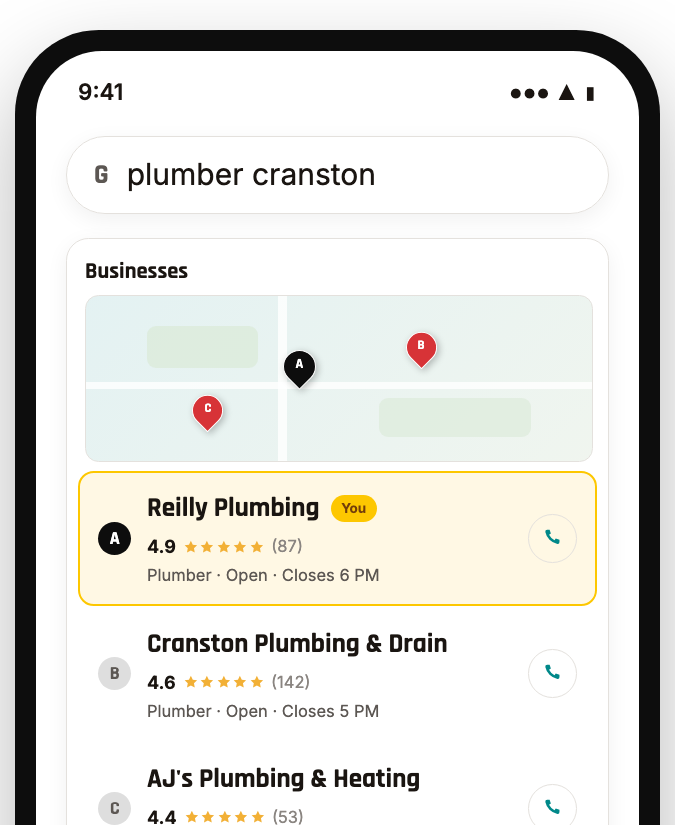
A phone searching plumber Cranston, with the map box showing three businesses and yours lit up
What's insideFree
  1. 01The 8 steps that decide where you show up on the map, in order
  2. 02A running clock and a done list, so you know when you're finished
  3. 03A decoder for every pitch in your DMs, so you never pay for this again

Read this before you pay anyone

Every marketer in your DMs is selling the same thirty minutes of work.

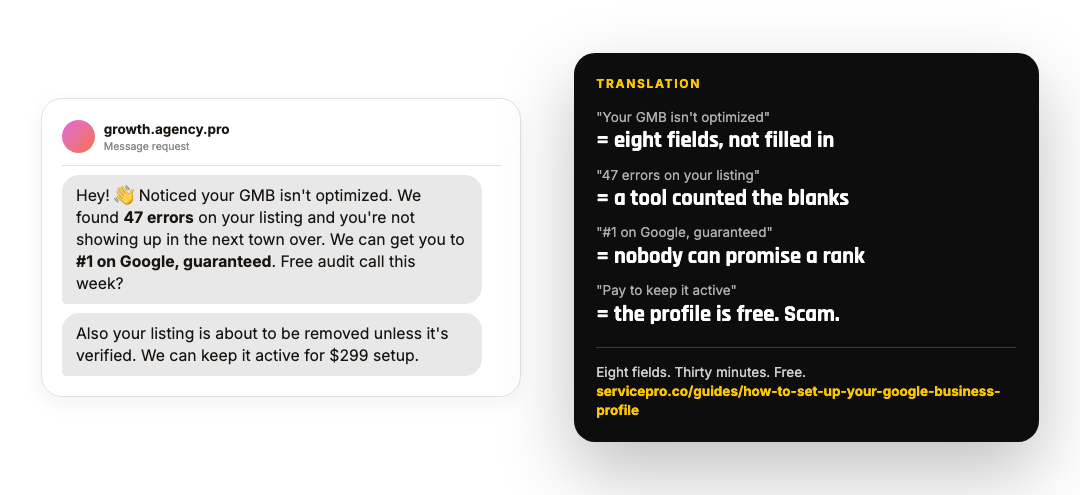
Every week someone messages you about your Google listing. They found 47 errors. You are not optimized. They can get you to number one. It is the same pitch from a hundred accounts.

Here is the work. Your Google Business Profile is the card that shows up in the map box when someone searches your trade and your town. It is free, and most of what Google looks at is eight fields you can fix from your phone.

Do the eight steps in order. Then keep the decoder at the bottom for the next message.

A message from a marketer about 47 errors on your listing, next to a translation: eight fields, thirty minutes, free

The setup

Eight steps, about thirty minutes.

Why each one matters, what to tap, and how you know it worked. Tick each one off as you go; a done step folds up.

Step 13 min

Make sure you own the profile.

If an old marketing company or a former employee still owns it, your changes will not stick.

  1. On your phone, signed in to the Google account that owns the profile, search your business name.
  2. Tap Edit profile, the three dots, Business Profile settings, then People and access.
  3. Open a private tab too. You will use it to check each step the way a customer sees it.
  4. Your account should say Primary owner. Remove anyone you do not recognize.
  5. No Edit profile button? Tap Own this business and claim it. Someone else owns it? Tap Request access.

Done when People and access lists you as Primary owner.
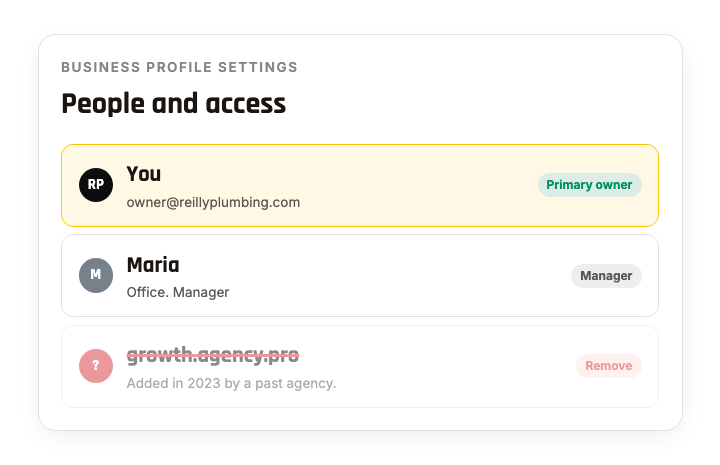
The People and access screen with you as Primary owner and an unknown agency being removed
Step 24 min

Set the primary category to your trade.

The primary category decides which searches you can show up for. It matters more than anything else on the profile.

  1. Edit profile, Business information, About, Business category.
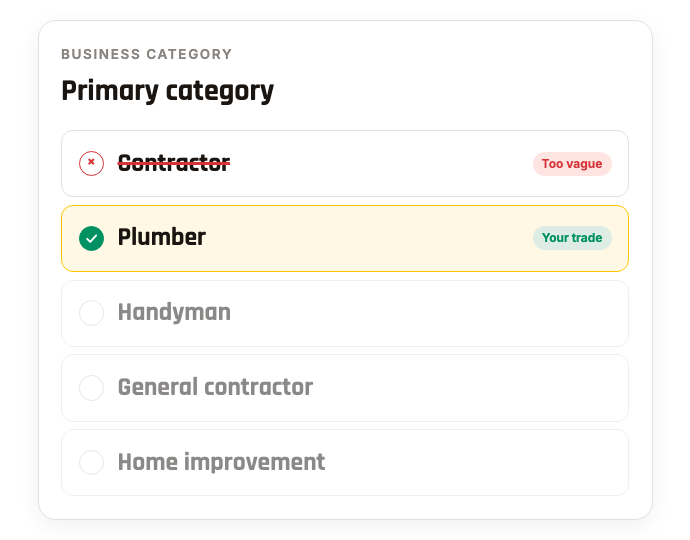
  2. Pick the category that names your trade. Plumber, not Contractor. HVAC contractor, not Home improvement.
  3. Add two or three secondary categories for work you actually do.

Done when in the private tab, the category under your name is your trade.

A category picker with Contractor crossed out and Plumber checked
Step 32 min

Use your real business name.

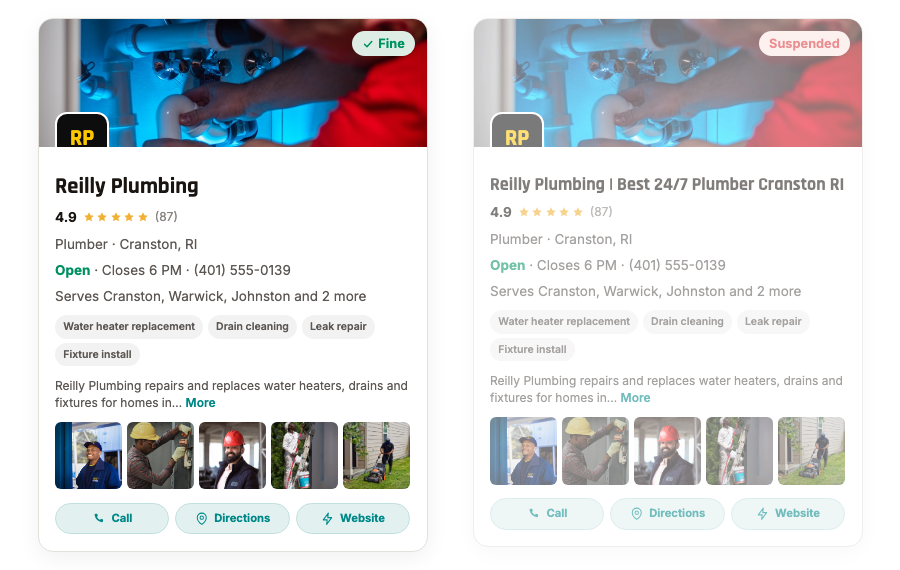
Google suspends profiles with towns, keywords or slogans in the name. A suspended profile shows up for nothing.

  1. Business information, About, Business name.
  2. Match the name on your truck, your invoice and your license.
  3. Remove the town, "best", "24/7" and any service words.

Done when the name on the profile matches the name on your truck.

Two profile cards: a plain business name that is fine, and a name stuffed with keywords that is suspended
Step 44 min

Hide your home address and list your towns.

This is how Google decides which towns to show you in.

  1. Business information, Location.
  2. If customers do not come to you, turn off Show business address to customers.
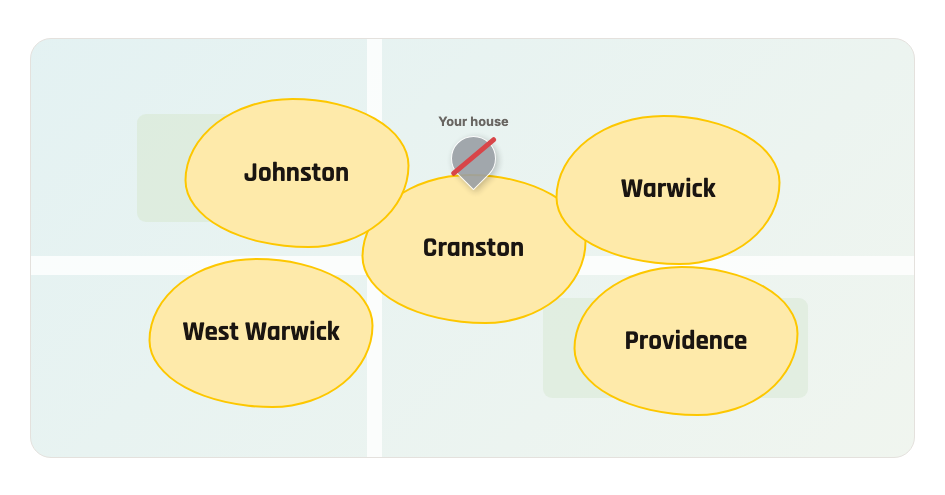
  3. Under Service area, add the towns you want calls from. Up to 20. Skip the ones you will not drive to.

Done when in the private tab, the card shows your towns, not a pin on your house.

A map with the home address pin removed and five towns marked as the service area
Step 56 min

List every service you offer.

Each service is one more search you can match. With none listed, Google guesses, and guesses small.

  1. Edit profile, Services.
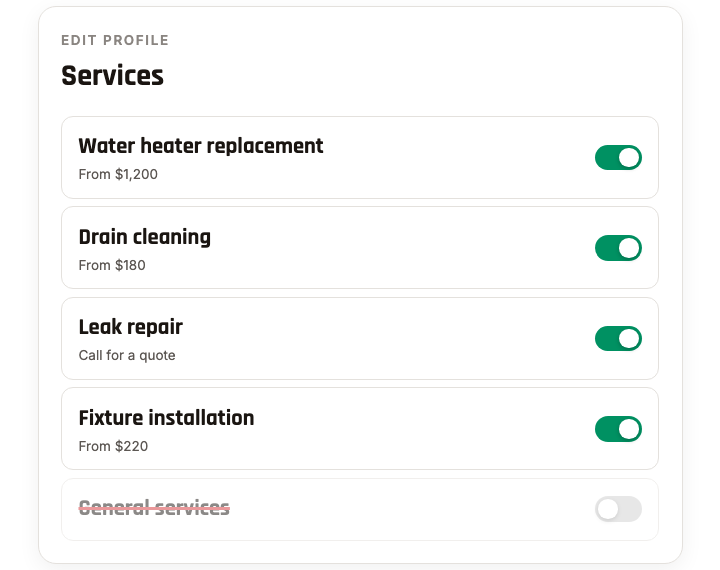
  2. Turn on the services Google suggests that you actually do.
  3. Add the ones it missed, in the words a customer would use: water heater replacement, not hydronic systems.
  4. Add a price where you have a fixed one.

Done when the Services tab lists the jobs you want, not General services.

A services list with real jobs switched on and General services switched off
Step 65 min

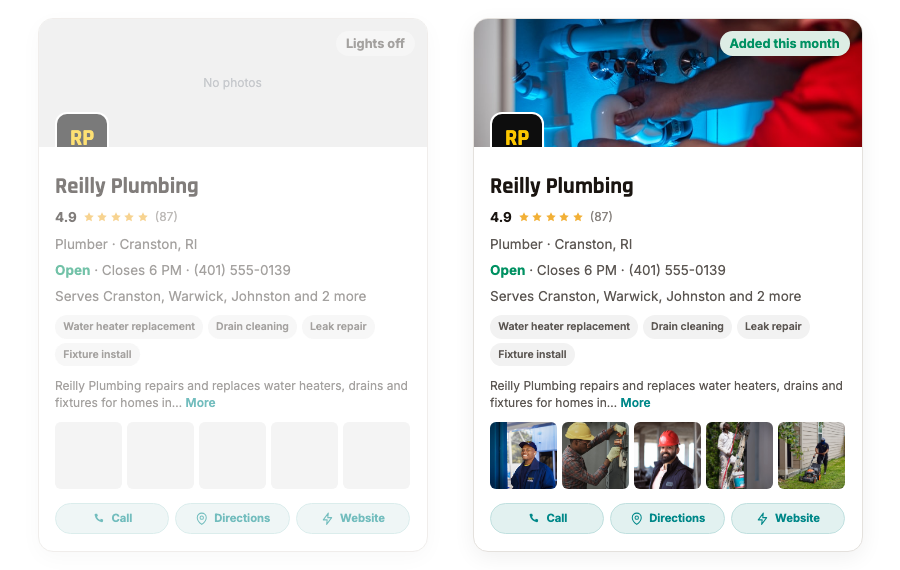
Add ten real photos.

A profile with only a logo looks closed. People wonder if you are still in business.

  1. On your profile, tap Add photo.
  2. Ten from your phone: your truck, you, the crew, three finished jobs, one before and after.
  3. Set your logo as the logo and a finished job as the cover.
  4. No stock photos.

Done when the newest photo on your profile is dated this month.

Two profile cards: one with only a logo, one with a grid of real job photos added this month
Step 73 min

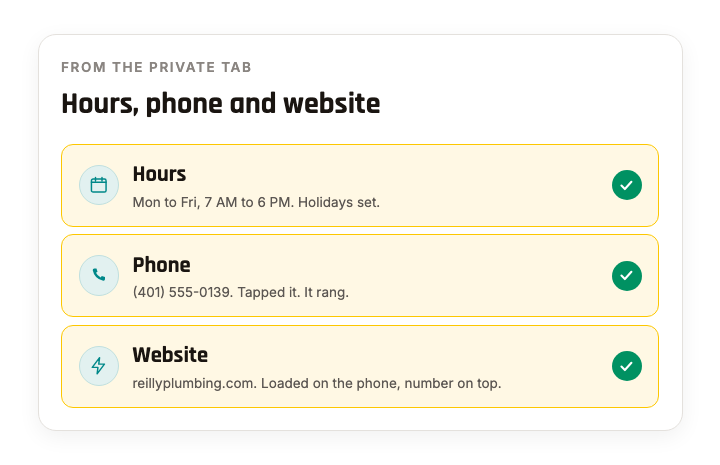
Check your hours, phone and website.

Someone with a burst pipe at 7am calls whoever looks open. Wrong hours and dead links send that call to the next company.

  1. Edit profile, Hours. Enter real hours and holiday hours.
  2. In the private tab, tap your phone number. Your phone should ring.
  3. Tap Website. It should open a site that shows your number, not a Facebook page.

Done when real hours, your phone rang, the website loaded.

Three checks passed: hours are real, the phone rang, the website loaded
Step 83 min

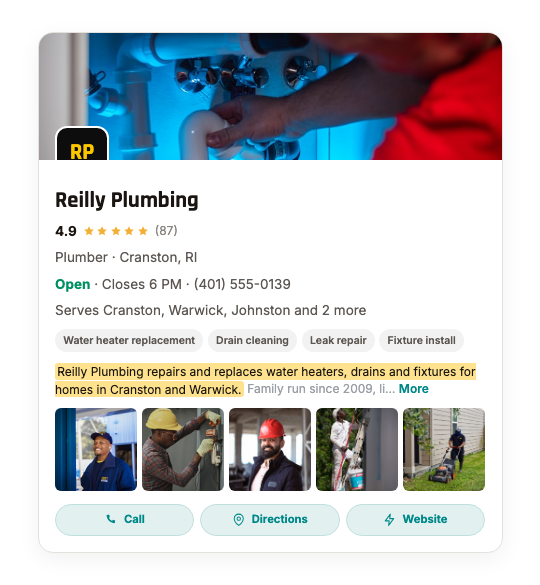
Write the first sentence of your description.

The card shows one line of your description. Almost nobody taps to read more.

  1. Business information, About, Description.
  2. First sentence: what you do and where. Example: Reilly Plumbing repairs and replaces water heaters, drains and fixtures for homes in Cranston and Warwick.
  3. Then how long you have been in business, what you specialize in, and how to reach you. Skip slogans.

Done when in the private tab, the line under your name says what you do and where.

A profile card showing only the first line of the description, which names the trade and the town

That is the whole profile.

Everything below this line is optional.

0 of 8 done

Keep it

A printable card for the truck.

The steps above are free, and ticking them off saves on this device. Unlocking adds this printable card for the truck, the decoder card as an image, a monthly reminder for your calendar, and the link by email so you can pick it up on another phone.

Locked — free to open

Unlock the full toolkit.

Drop your email and the tap-to-copy pack, the tally card, and the print version unlock right here — no redirect, no PDF hunt.

Free · We'll email you your own link · Unsubscribe anytime

If you have twenty more minutes

Five more things, if you have twenty minutes.

  1. 01

    Ask for reviews, and reply to every one.

    On your profile, tap Ask for reviews to get your link. Send it to every customer the day the job wraps; the three review texts have the wording. Then reply to every review, including the bad ones, because the next customer reads your replies to see how you handle a problem.

  2. 02

    Post once a week.

    Tap Add update. One job photo and two plain sentences about what you did. No hashtags. An offer if you have one. ServicePro publishes these to your profile on a schedule if you'd rather not remember.

  3. 03

    Ask and answer your own questions.

    The Q&A section on your profile is open to anyone. Add the five questions you get on every call, with your answers, before a stranger adds them for you.

  4. 04

    Check for a duplicate listing.

    Search your business name and your phone number in Google Maps. If two listings come up, open the old one, tap Suggest an edit, then Remove this place, then Duplicate of another place. Two listings split your reviews and confuse Google about which one is you.

  5. 05

    Fill in the attributes and add a booking link.

    Business information, More: veteran-owned, women-owned, and whatever else applies. If you have a page that takes bookings, add it under Booking.

The DM decoder

What the messages in your inbox actually mean.

Most of them charge for a step you just did.

  • They say"Your GMB isn't optimized."

    What it meansThe eight fields above aren't all filled in.

    You already did itSteps 1 to 8

  • They say"We found 47 errors on your listing."

    What it meansA tool scanned the same eight fields and counted the blanks.

    You already did itSteps 1 to 8

  • They say"We'll get you to #1 on Google, guaranteed."

    What it meansNobody can promise a rank. Google says so in writing.

    You already did itNothing. Delete it.

  • They say"Your listing is about to be removed. Pay to keep it active."

    What it meansThe profile is free. It always has been. This one is a scam.

    You already did itStep 1

  • They say"You're not showing up in [the next town over]."

    What it meansYour service area or your category doesn't cover it.

    You already did itSteps 2 and 4

  • They say"You need more reviews."

    What it meansTrue, and the ask is free.

    You already did itTwenty more minutes, item 1

  • They say"Google Guaranteed setup, $299."

    What it meansLocal Services Ads are a real Google product. There is no setup fee; Google runs the sign-up itself.

    You already did itNot this guide

Every month

Five minutes on the first of every month.

  1. 1

    Add ten new photos.

  2. 2

    Reply to every new review.

  3. 3

    Search your trade and your town from across town, in a private tab. The neighbors test is the full version.

  4. 4

    Recheck the eight. Google moves the fields around, and things drift.

Now the other half

The profile is fixed. Now see where it shows up.

Google gives a different answer every few blocks, and the only way to know which neighborhoods can see you is to search from all of them. The free scan does that in one run and shows you the map.

So, where do you actually rank?

One free scan shows exactly where your business stands on Google across your service area — and which competitors are ahead of you.

See where I rank →
Free · No credit card · No account needed